Import Bookmarks
Bring your existing bookmarks into Runa from Chrome, Arc, and any browser that exports to HTML.
From Chrome
- 1
Export your bookmarks
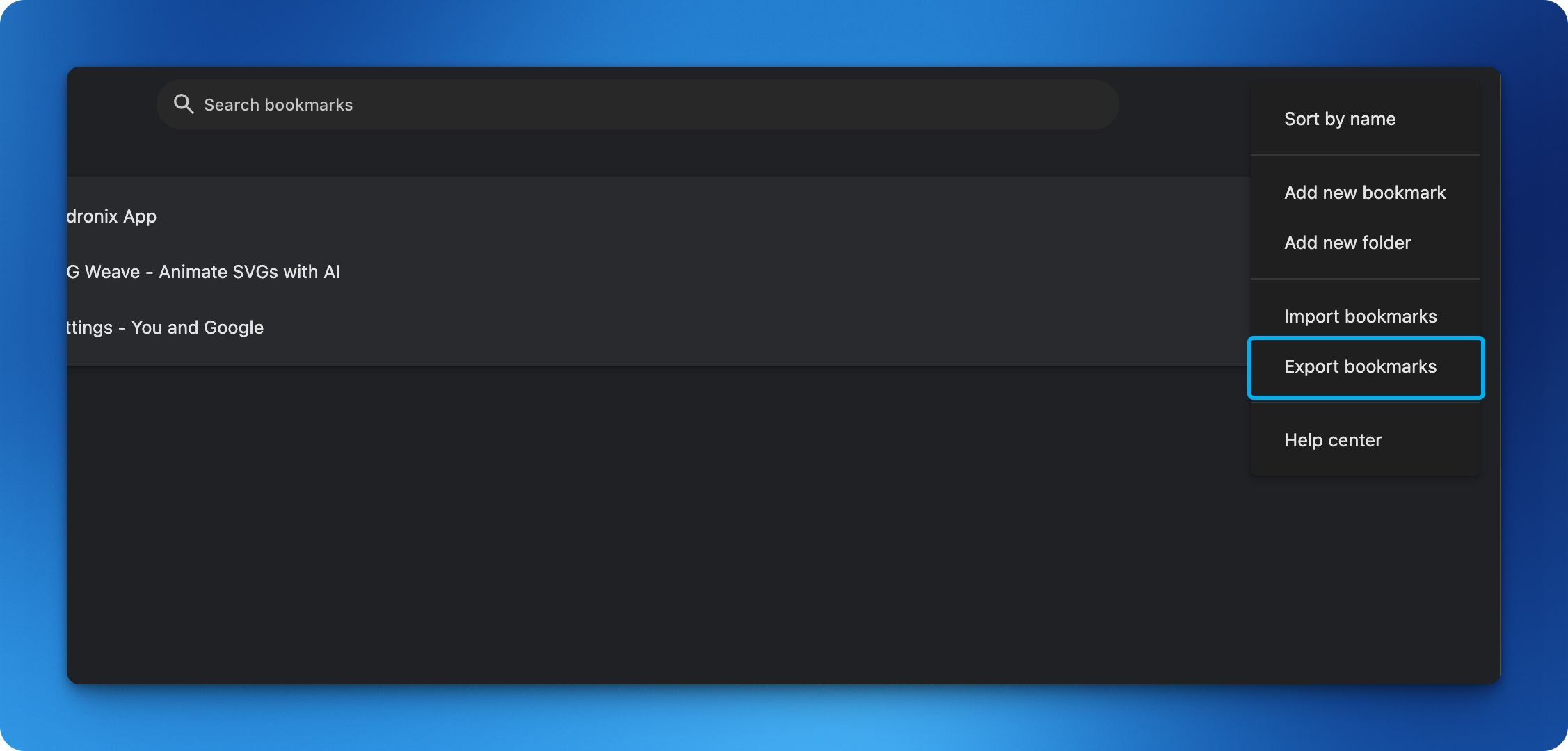
Open Chrome and go to the Bookmark Manager (⌘+Shift+O on Mac, Ctrl+Shift+O on Windows). Click the three-dot menu in the top right corner, then select Export bookmarks. Chrome will save a .html file.
- 2
Upload to Runa
In Runa, go to Settings → Integrations → Import Bookmarks. Click Choose file and select the .html file you just exported. You'll see a preview of how many bookmarks were found.
- 3
Import
Click Import to save all your bookmarks. Duplicates are automatically skipped. Each bookmark will be enriched with metadata and AI summaries.
From Arc
- 1
Copy links from a folder
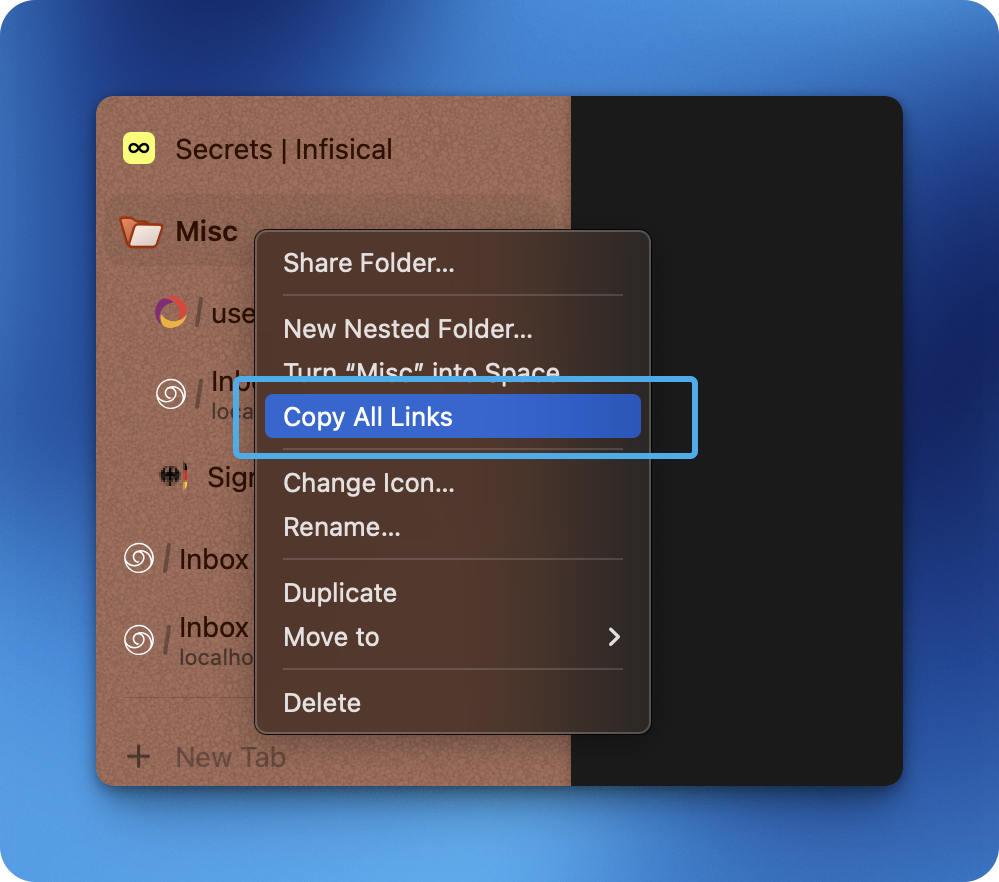
In Arc's sidebar, right-click a pinned folder that contains the tabs you want to import. Select Copy All Links from the context menu.
- 2
Paste into Runa
Open Runa in your browser. Simply paste (⌘+V) anywhere on the page, or open the add link dialog (+) and paste there. Runa will automatically detect and separate all the URLs.
- 3
Done
All your links are saved and queued for enrichment. You'll see a toast showing how many links were saved and how many duplicates were skipped.
Other Browsers
Firefox, Safari, Brave, Edge, and most other browsers can export bookmarks to the same HTML format that Chrome uses. Look for an “Export Bookmarks” option in your browser's bookmark manager, then follow the Chrome steps above.