MCP Server
Connect AI assistants to your Runa library using the Model Context Protocol. Save, search, and manage bookmarks from any MCP-compatible client.
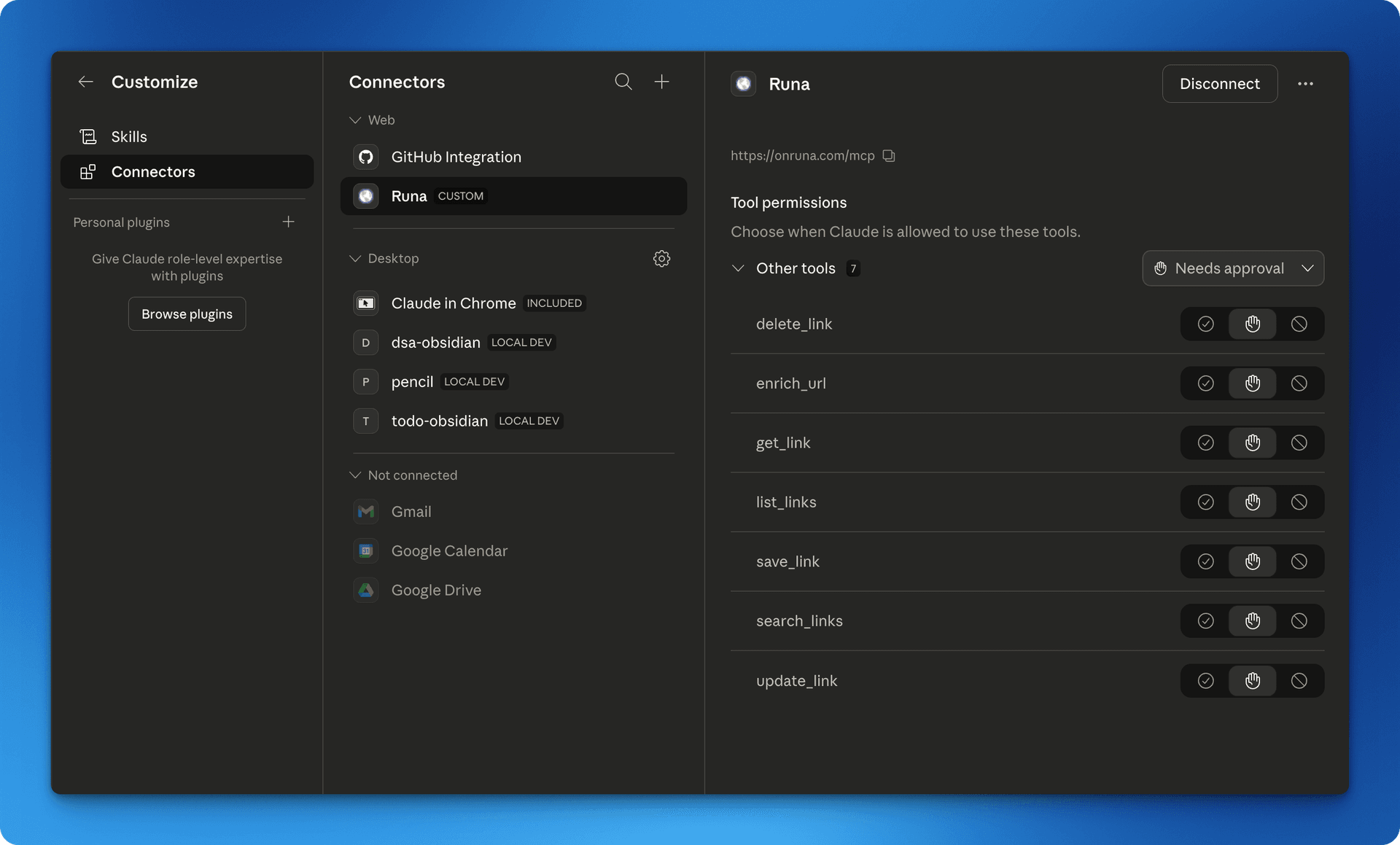
How it works
Runa exposes a remote MCP server with OAuth authentication. Add the server URL to your AI tool, authorize with your Runa account, and your assistant can interact with your bookmarks directly.
https://onruna.com/mcp
Setup
Claude Code
- Run the following command:
claude mcp add runa https://onruna.com/mcp
Claude Desktop
- Open Settings > MCP Servers > Add Server
- Enter the server URL:
https://onruna.com/mcp
Cursor
- Open Settings > MCP > Add new MCP server
- Set type to "sse" and enter the URL:
https://onruna.com/mcp
VS Code / Copilot
- Add to your settings.json:
{
  "mcp": {
    "servers": {
      "runa": {
        "type": "sse",
        "url": "https://onruna.com/mcp"
      }
    }
  }
}
ChatGPT
- Go to Settings > Connectors > Add connector
- Enter the server URL:
https://onruna.com/mcp
The first time you connect, you'll be prompted to authorize through your browser. After that, your AI assistant can use all the tools below.
Available tools
save_linkSave a URL as a bookmark. Automatically enriches metadata and triggers AI tagging.
list_linksList bookmarks filtered by status (inbox, archived, or trash).
search_linksFull-text search across bookmark titles and content.
get_linkGet a single bookmark by its ID.
update_linkUpdate a bookmark's title, description, status, or NSFW flag.
delete_linkPermanently delete a bookmark.
enrich_urlFetch metadata for a URL without saving it. Preview before bookmarking.
Local server (advanced)
If you prefer a local stdio-based server (no OAuth, uses an API key), you can run it directly:
# Install
git clone https://github.com/imprakharshukla/Runa
cd Runa && bun install

# Configure
export RUNA_API_KEY="runa_sk_..."

# Add to your MCP client config
{
  "mcpServers": {
    "runa": {
      "command": "bun",
      "args": ["run", "packages/mcp/src/index.ts"],
      "env": { "RUNA_API_KEY": "runa_sk_..." }
    }
  }
}
Generate an API key from Settings → API Keys in your dashboard.